Google Hangouts Finally Work!

I have been trying Google Hangouts sporadically for the last … 6 months or so. Using it once a month to handle a group chat or video chat instead of my regular Skype, phone, or webex usage. It improved tremedously each month, but since in the first few months it wouldnt evenload correctlt thta wasnt saying much. By the time it finally started loading correctly for me it was dropping calls left and right and very choppy in the UI.

All that being said, it was a great day in the video conference world today: our team at Socialize used Hangouts for a group call and it worked flawlessly! Hooray, finally a group video chat system that actually works. Of course I am holding back a little bit since most video chat services are hit or miss, but I must admit that the steady growth of improvement on Google Hangouts is nice, and if it keeps up this trajectory it will be the goto for me and my team.


Some cool features that come with GHang:

1 – You can schedule a hangout on your calendar

2 – You can video chat with multiple poeple for free

3 – It comes with the standard “effects” sweet people know and love. We had a good time using the “applause” effect for each persons update, and the “gong” effect when the meeting was over.

4 – You can screen share to the group pretty easily

5 – You can pull in your Google Drive data into the chat. Which is nice for us since we use GDrive a lot. I haven’t tried it yet, but presentations in GDrive should integrate well…

Give Google Hangouts a shot, and let me know if it worked smoothly for you too, or if my glee is premature.


Chrome Tip: Multi-profiles and Offline Docs

You may have already used the Chrome incognito profile, but what you may not know about is the fact that chrome now allows you to create and use multiple profiles on your computer. While incognito us used to specfically ensure that no data is stored or tracked on your system based on the sites and pages you visit, profiles allow you to better manage the various ways those pages are stored either online or off. Here is how to use them.

Incognito Mode:

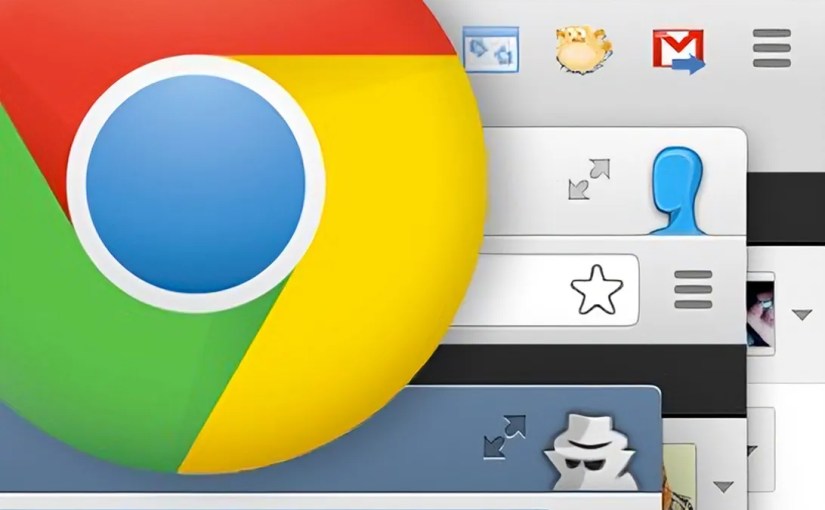
Incognito mode ( i.e. the mode with the browser icon as a sunglass and hat wearing fellow in this blog’s screen shot ) prevents pages you visit from being tracked, stored in history and clears all cookies from your session once the window is closed, no matter what the site you are visiting has set. There are many reasons why you may want to do this. The cite version: You and your girlfriend use the same computer and you don’t want her to know about the surprise earrings you have been shopping for her online. The not so cute version, well, let’s just say you can avoid getting in trouble like Jim Levenstein does in American Reunion. (BTW, that movie is not worth seeing even if to only get the joke)

To enable incognito mode go to the menu ( ) option in the top right corner of your Chrome browser and select “New Incognito Window” or press Command+Shift+N . Also note: Chrome in your app on your mobile device has the same options and works the same way.

Signing in to Chrome

Chrome can connect to your GMail account, and doing so allows you to do things like sync bookmarks between devices, as well as allow you to edit your Google Drive documents stored on the cloud even while you have no internet connection available. This tool came in handy recently when I came up with some ideas for a document I was working on while at a hotel that didn’t have wifi available. I simply made the changes needed and when internet resumed the doc was synced and merged to my online version of the doc. By signing in to your Google account on chrome a default profile for your computer ( i.e. the mode with the browser icon as a head with no face in this blog’s screen shot ) will be automatically assigned to you and connected to the account you signed in with.

To login to your Google account in Chrome go to the menu ( ) option in the top right corner of your Chrome browser and select “Sign In”. You will then be given the Google login page. Sign in as you would with your GMail account and you are all set.

Enabling Your Chrome Profile to Work on Docs Offline

If you haven’t used your Google Drive already you should really take a second to get to know it. Not only can you store 5GB of files of any type for free in your Google Drive AND use them as a local drive on your computer and phone just like Dropbox, BUT you can use it to create and save documents of various types that you can use to collaborate on simultaneous with other users.

To explain the latter more clearly through example: We use Google Docs at Socialize at all our meetings. During the meeting we create a google doc and throughout the meeting anyone can add, append, change or update the way the notes are taken all at the same time. You can see one another typing as you type and often times most of the meeting will be completed in silence while everyone adds their notes to the doc. Collaboration is saved and shared in a document instantly.

But I digress…

To enable your Google docs to have offline access first go to your Google Drive (http://drive.google.com). On the left hand menu select the “more” drop down to reveal extra options. Finally click “offline docs” and enable. Your drive will sync your docs to your local Chrome profile. Note: If you do not see the “Offline Docs” in the “more” dropdown, and you are using Google App for work, you will need to either enable the feature in your Google App’s Admin portal, or get your sysadmin to do it for you. It is located in the Google Drive sectionof the Admin’s “Settings” tab.

Multiple Chrome Profiles

You are probably just fine getting your Google Drive working on your default Chrome profile to work on offline docs, just as I was for quite some time. The problem is that when I tried to enable offline docs for my personal Google Drive documents, as well as my work docs, the Google Drive system did not allow it. Chrome only allows one offline sync per Chrome profile. To fix this problem you will need to create an additional Chrome Profile on your browser ( i.e. create a mode with a different browser icon like the one with the Ninja in this blog’s screen shot ), and then enable Offline Docs in your Google Drive while in the correct profile.

To add additional profiles to Chrome go to the menu ( ) option in the top right corner of your Chrome browser and select “Settings”. Scroll down to the “Users” section and choose “Add new user.” Once you have added a profile correctly your Users section should look something like this:

Switching Between Profiles

To switch between profile simply click the icon for your current profile in the top right of the browser and choose the profile you wish to use. Once selected, a new browser window will open with that profile enabled.

Google Maps for iPhone Saves the Day. Thanks Santa!

It’s finally here – Google Maps for iPhone! Seriously, thank god.

The Apple maps has gotten allot of flack, and I try to stay out of the bashing business, but man – it kept shoving the fact that it blows in my face for quite some time and it couldn’t be ignored.

On my iPhone4 the new Google maps movement is a bit choppy, but that could very well be my old device struggling to keep up. The funny thing about this app coming out now before christmas is that I was seriously considering upgraind to Android (as I believe 2013 will be the true shift for Google/Android’s supremacy  , but with this app iPhone5 slipped right back into my option pool. Interesting play Google, interesting play…

One thing to observe: My home screen of my iPhone has now gone from Apple maps, mail, and safari to now sporting a Google trifecta of Google Maps, Gmail, and Chrome. All with my user account logged in. It is like Google is slowly creating an unatachable symbotic relationship with my iphone. All the apps from Google listed are a bit choppy but I still made them my primary apps for those functions for two reasons, 1) I am ready for a visual/ux refresh and a hybrid of Apple charm with Google power is satisfying 2) I use Google in every other aspect of my life, so why not one more? I see more of this to come in 2013.

Also, cheers to Google for giving into the mobile app revolution and ending their forced fight to “preserve” the HTML5 movement for the better of us all. The goal is always to make great products, and if HTML5 can do that now – use it, if you are giving up quality – don’t. It’s simple. I am glad they and others like Facebook finally realized how to play the game. Although it is a 6 year delayed reaction I am happy it’s here.

What are the latest apps connecting our digital media worlds?

I wrote a post a few months ago about “tagging” (http://www.seanshadmand.com/2012/03/02/finally-audio-based-commands-that-dont-suck/) looking for products that connect our real world data to our digital device data on demand.

Regarding that, I see the opportunity for how Shazam commercial tagging technology and the Conan show technology, written about in the post will play out for the positive in the near future.

The intonow iPad app (by Yahoo: https://itunes.apple.com/us/app/intonow-from-yahoo!/id406436404?mt=8) allows TV watchers to sync up with any show on TV. It actually works great and integrates social into every show live. I noticed that when I try to sync when a commercial is on it gives a warning: “You cannot sync commercials Which is great — it knows it was a commercial. Now that my iPad is on and open, and sync is well made and works consistently, I can now see the Shazam tagging work beautiful. I don’t expect it to be very far away.

Also, regarding Yahoo, this is the second time (first with producing Burning Love, a great web only comedy series; and the second the intonow mobile app) in a matter of month I have been impressed with what they are putting out in the TV media space. They have a nothing to lose attitude and are able to take the necessary chances needed to be taken by a big company to change the landscape and lead the charge in the inevitable transition into the digital first media world. A great early indicator that they will be big players in 2013.

What New Apps Are Sean Using These Days?


Someone asked me about new apps I find myself using these days. Figured it would be worth a blog post to post my answer.

So here is a list of newer apps I find my self using on a semi daily basis, that are also new. I have omitted apps I have been using for years now.

Fancy: http://itunes.apple.com/us/app/fancy/id407324335?mt=8

A new take on Pinterest where yo can buy what you fancy


Lyft
: http://itunes.apple.com/us/app/lyft-on-demand-ridesharing/id529379082?mt=8

Car sharing rides by crowd source


Pocket
: http://itunes.apple.com/us/app/pocket-formerly-read-it-later/id309601447?mt=8

Save your websites to a list on your phone for reading later

Digg: http://itunes.apple.com/us/app/digg/id362872995?mt=8

After Digg got bought and revamped their App and content seems worth using again and has a second life forming.

LoseIt: http://itunes.apple.com/us/app/lose-it!/id297368629?mt=8

A calorie counter that does a great job with bar code scanning and daily and weekly budgets for your food tracking. Use it daiy.

Other notables:

InstaCart: http://itunes.apple.com/us/app/instacart/id545599256?mt=8

A friend started this one very recently. They are doing food deliveries in under an hour based on food purchased through app.

Seamless: http://itunes.apple.com/us/app/seamless-food-delivery-takeout/id381840917?mt=8

This is the only app I buy delivery though

TripIt: http://itunes.apple.com/us/app/tripit-travel-organizer-free/id311035142?mt=8

Love the updates and info on all my upcoming flights. It gets populated through email receipts of my flight purchases.

Of course this excludes many more apps I use allot like Taxi Magic, Uber, Evernote, Mint, E*trade, Spotify, Bank Of America, Facebook, Twitter, Yelp, etc etc
Here are some screenshots of my homescreens. Figured sharing them would be cool. Post feedback or share your own below:

Fake Response Server: Slow response time generator

Here is another quick tool built on AWS. This one is super simple, but pretty handy. Today Twitter went down, and somewhere in our system we were using the Twitter API to display one of our status feeds. Them being down became us being slow.

Well, I wanted to do some quick tests to keep this from happening again, but byt the time I got to it Twitter was responsive again. To fix it I would need to create a bad URL. The crappy thing is I wanted a slow response time, not exactly a bad response/error. Creating a 404 error is easy, just go to some url that doesn’t exists and test. But I want a slowwwww response.

I quickly searched Google for something I could use, and didn’t find one. When I realized I would have to create a fake pause endpioint somewhere I figured someone else out there might benfiift from a quick public version of this system. So, I created fake response server. The first default endpoint available sleeps for a variable time.

https://fakeresponder.com

and add a sleep param to change the sleep time in milliseconds

https://fakeresponder.com?sleep=500

Nothing major, but why not publicize the tool incase it can help some other shmuck out there like me 🙂

Cheers.

My first iMovie: Demoing a product

Here is a vid of the Android demo. It is my first iMovie project so it’s a bit rough around the edges, ut to be honest it was kind of fun to do.
I’m looking forward to making the iOS one, or for any feature for that matter, and taking what i’ve learned to improve.
Some tips, lessons learned that I wish I did.:
– Take you finger away from the shot after every action, it makes it way easier to cut up
– Shoot it side ways so the stage is not taller than wide
– tape the phone down and mount your camera so it doesnt move throught the shot. again, better cutting chances.
make a short movie first and play with all the transitions, and effects and themes. Cut up your movie and add each clip to the stage and add some text and transitions again. Then add some music. I would have saved allot of time on the final if I had known what I know afte the final was made, but by te end of the real movie i was to tired to go back and start over.

Finally audio based commands and tagging that doesn't suck

QR Codes

I have kept an eye on QR codes for a few years now; it is a simple technology. Simple technologies win because – well, they just plain work. So many new technologies do a better job of adding complexities to solve a problem than they do to decrease them. I mean, as an example, the majority of the world still uses headphone jacks and earbuds to listen to their iPod, even though blue tooth is a great technology that removes the need to use those easily tangled cords. BUT those annoying tangled cords are still far more reliable and simpler to use than bluetooth. So we wait for the “simpler” technology to become – simpler. QR codes have the same M.O. They are simple and work, but they are also annoyingly primitive. For example, that QR code image you see on the left of this article means absolulty nothing to you visually. Yet I use it to take up space on the page, because it can provide value if you are willing to pull out your phone and take a snapshot of it.

The QR code works becuase it is a unique image that contains data within all its black and wite specks, like a data finger print or a bar code.  A device with an app that can read those specks convert the “fingerprint” into a equally unique URL that the app can then direct you too.

A more complex, yet more direct solution, is to have an image that is human readable, like and ad, act as the data rich finger print. That way a person can either take advantage of the precious realestate of the ad by siimply reading it, or taking a picture of the ad and get directed to the related URL. It looks like technolgies such as Google Goggles are on their way to crakingthat nut. For now however, Google Goggles is not more reliable or simpler to use then our ugly, cryptic; yet simple, and relaibale QR code.

Audio Commands and Tagging


The use of audio commands has had a problem finding its place as a “simpler” solution to the everyday problems they always claim to have solved, but as often fall short on expectations. I don’t know how many friends of mine have had voice-command car systems that in the end just dont work as reliably and effectively as turning a dial or pressing a button on their dash.

John’s car: “bee-eep. Can I help you?”

John in his car: “Call Sean”

John’s car: “Looking for Jons and bathrooms in the area.”

John: “Ugghhh! No , Call Sean!”

Car: “Bee-eep. Thank you. Calling Don now…”

John: :-[

Siri seems to be making voice commands better, or at least marketing it that way, but the dream of talking to our computers, as the easier way to interact with them, still seems as far away as it did here (See min 3:00 in 1984) http://www.youtube.com/watch?v=2B-XwPjn9YY


Okay, Siri and Google voice commands are doing better, and getting used more use than I have ever seen in the past with similar technologies, so that is promising…but yelling into your phone to “search for near by bars” in a crowded room is – well – shitty.

Shazam made some great leaps forward in the audio tagging and command space by finding the unique characteristics in songs, and turning that into pertinent data. That uniqueness is used so that the app can determine the song name, and its singer, just by holding up your phone to a song you hear on the radio.

This year, as some you may have already seen, Shazam has gotten into the QR related space by bringing their technology to TV comercials. When you see the Shazaam logo on a comercial open your Shazam app and let Shazam listen to the commercials unique audio. Their ability to link the unique “fingerprint” of sound coming form the commercials audio, and turn it into useful data allows them to link commercials to open a website on your device; much like a QR code. It is neat because the audio is as easily interpreted by human ears as it is by the Shazam app; maximizing the use of the allotted ad space. Unfortunately it falls short in the fact that it is impractical to expect a viewer to chase down their phone, open the Shazam app, and tag the comecials audio, before the comercial is over.

Audio Sync


I think I just saw a technology that actually make sense. Practical in its use, efficient in it implementation, and it solves a problem by decreasing complexity more then it adds.

In this case the audio is used to sync your tablet to a show you are watching. With this strategy you’re truly decreasing the steps needed to get what the show, and the viewer wants. No extra steps, no rushing for a unrelated app to open a web page, no ugly QR code images taking up space, just simply a way to help the user link the app their are using to the show they are watching.

It works by listening to the show you are watching, and applying the Shazaam like technology to the audio of the show to recognize what part of what show you are watching. The data is processed, and instead of just opening a web page, it sync your application’s experience to meta data surrounding the show on you TV. You can then interact with others watching the same moment at the same time, or listen to back stories related to the segment. Cool beans.



Finally audio based commands and tagging that doesn’t suck

QR Codes

I have kept an eye on QR codes for a few years now; it is a simple technology. Simple technologies win because – well, they just plain work. So many new technologies do a better job of adding complexities to solve a problem than they do to decrease them. I mean, as an example, the majority of the world still uses headphone jacks and earbuds to listen to their iPod, even though blue tooth is a great technology that removes the need to use those easily tangled cords. BUT those annoying tangled cords are still far more reliable and simpler to use than bluetooth. So we wait for the “simpler” technology to become – simpler. QR codes have the same M.O. They are simple and work, but they are also annoyingly primitive. For example, that QR code image you see on the left of this article means absolulty nothing to you visually. Yet I use it to take up space on the page, because it can provide value if you are willing to pull out your phone and take a snapshot of it.

The QR code works becuase it is a unique image that contains data within all its black and wite specks, like a data finger print or a bar code.  A device with an app that can read those specks convert the “fingerprint” into a equally unique URL that the app can then direct you too.

A more complex, yet more direct solution, is to have an image that is human readable, like and ad, act as the data rich finger print. That way a person can either take advantage of the precious realestate of the ad by siimply reading it, or taking a picture of the ad and get directed to the related URL. It looks like technolgies such as Google Goggles are on their way to crakingthat nut. For now however, Google Goggles is not more reliable or simpler to use then our ugly, cryptic; yet simple, and relaibale QR code.

Audio Commands and Tagging


The use of audio commands has had a problem finding its place as a “simpler” solution to the everyday problems they always claim to have solved, but as often fall short on expectations. I don’t know how many friends of mine have had voice-command car systems that in the end just dont work as reliably and effectively as turning a dial or pressing a button on their dash.

John’s car: “bee-eep. Can I help you?”

John in his car: “Call Sean”

John’s car: “Looking for Jons and bathrooms in the area.”

John: “Ugghhh! No , Call Sean!”

Car: “Bee-eep. Thank you. Calling Don now…”

John: :-[

Siri seems to be making voice commands better, or at least marketing it that way, but the dream of talking to our computers, as the easier way to interact with them, still seems as far away as it did here (See min 3:00 in 1984) http://www.youtube.com/watch?v=2B-XwPjn9YY


Okay, Siri and Google voice commands are doing better, and getting used more use than I have ever seen in the past with similar technologies, so that is promising…but yelling into your phone to “search for near by bars” in a crowded room is – well – shitty.

Shazam made some great leaps forward in the audio tagging and command space by finding the unique characteristics in songs, and turning that into pertinent data. That uniqueness is used so that the app can determine the song name, and its singer, just by holding up your phone to a song you hear on the radio.

This year, as some you may have already seen, Shazam has gotten into the QR related space by bringing their technology to TV comercials. When you see the Shazaam logo on a comercial open your Shazam app and let Shazam listen to the commercials unique audio. Their ability to link the unique “fingerprint” of sound coming form the commercials audio, and turn it into useful data allows them to link commercials to open a website on your device; much like a QR code. It is neat because the audio is as easily interpreted by human ears as it is by the Shazam app; maximizing the use of the allotted ad space. Unfortunately it falls short in the fact that it is impractical to expect a viewer to chase down their phone, open the Shazam app, and tag the comecials audio, before the comercial is over.

Audio Sync


I think I just saw a technology that actually make sense. Practical in its use, efficient in it implementation, and it solves a problem by decreasing complexity more then it adds.

In this case the audio is used to sync your tablet to a show you are watching. With this strategy you’re truly decreasing the steps needed to get what the show, and the viewer wants. No extra steps, no rushing for a unrelated app to open a web page, no ugly QR code images taking up space, just simply a way to help the user link the app their are using to the show they are watching.

It works by listening to the show you are watching, and applying the Shazaam like technology to the audio of the show to recognize what part of what show you are watching. The data is processed, and instead of just opening a web page, it sync your application’s experience to meta data surrounding the show on you TV. You can then interact with others watching the same moment at the same time, or listen to back stories related to the segment. Cool beans.